
















Netgear Extender Reset Guide: Restore Performance in Minutes
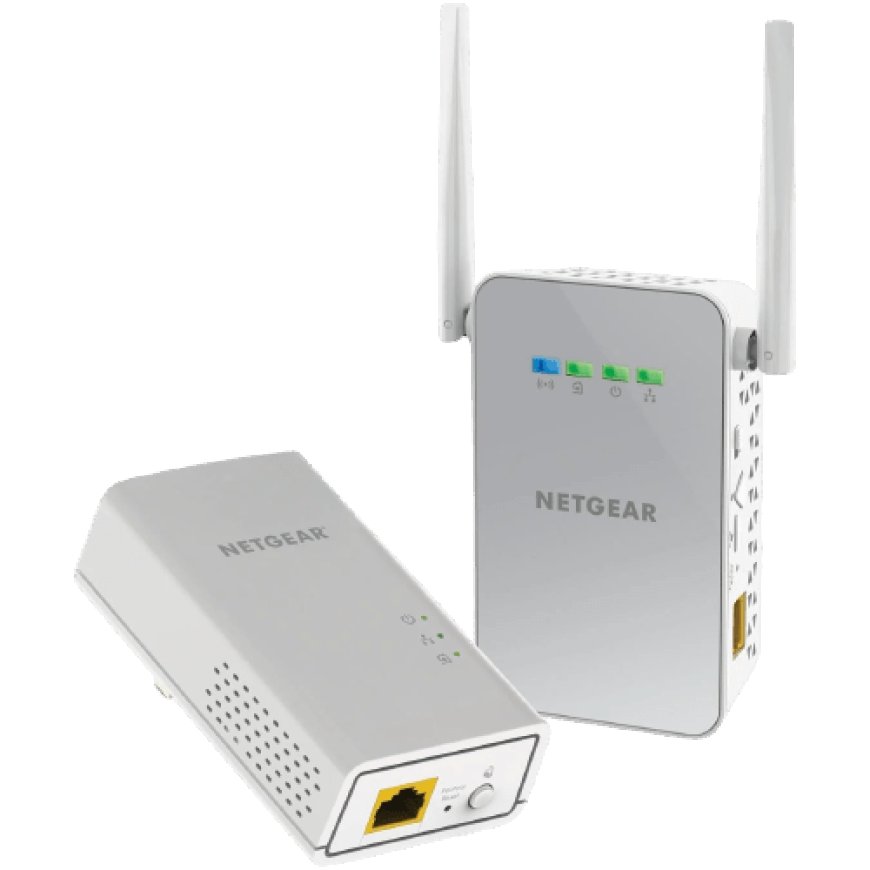
Are you facing a lot of problems from your extender like Netgear extender not working, or internet is lagging? It can be resolved with the help of the resetting the extender.
Here, we provide you a guide of Netgear extender reset & how to complete the Netgear extender setup after that.
First, lets see why resetting can work to fix multiple issues in your extender.
Why Resetting Even Works?
Over time, your Netgear extender builds up junk like bad settings, glitches, update errors, whatever.
Resetting it wipes everything clean. Like brand new. Its not just restarting. Its more like giving it a fresh brain.
So, if its having bugs, forgetful, or refusing to connect, a reset is the first thing you should try.
Seriously. It fixes 90% of the weird stuff.
When You Should Reset Your Netgear Extender?
You dont have to reset every time there's a error. But if youre running into these issues, go for it:
- Extender WiFi not showing up
- Devices wont connect (even with the right password)
- Setup page mywifiext.net not loading
- Lights blinking randomly or stuck
- You just forgot the admin password
- Its been years since setup, and things are just slow
Lets Reset the Extender
Step 1: Find the Reset Hole
Look at your extender. Back or bottom. Tiny hole labeled RESET. Youll need something sharp a paperclip works great.
Step 2: Power It On
Plug it in. Wait for the power light to turn solid. No lights? Try a different outlet. Dont bother resetting if it's not powered up.
Step 3: Stick the Pin In
Gently push and hold the reset button. Dont just tap it. Hold it for about 10-15 seconds until you see the power light blink or change color. That means its wiping itself clean.
Step 4: Wait
Itll reboot. The lights will blink, maybe go dark, then light up again. Give it 2 full minutes. Be patient.
Step 5: Reconnect and Set It Up Again
After reset, its like a brand-new extender. Youll need to:
1. Connect a computer with the extenders network that is Netgear_ext.
2. Then go into any web browser & search the interface login URL mywifiext.net or Mywifiext.local.
3. Searching these URLs will open up a Netgear extender setup page, where you need to enter the MyNetgear account details.
4. You will get inside the interface, now, you can set your extender network by typing the name and password of the WiFi.
5. Then reboot the device to finish the setup and connect with the extended network.
So, at last we have elaborated all the steps of Netgear extender reset process. Now, you should read a few tips so that you wont need to reset the device again.
A Few Tips from Real-World Setup
- Place it right halfway between your router and the area with weak signal.
Not too far, not too close. - Keep it off the floor higher up = better signal.
- Avoid walls and big appliances microwaves, fridges, concrete = signal killers.
- Use the 5GHz band if your extender has it. Less crowded, faster speeds.
- Update firmware once its working. Log into the extender, check for updates.
Old firmware = bugs you dont want.
If Resetting Didnt Help...
Okay, so you did the reset and its still acting up?
Try these before giving up:
- Try resetting again. Sounds dumb, but sometimes it doesnt fully wipe on the first try.
- Use Ethernet. Connect your extender to a laptop using an Ethernet cable. Setup is usually smoother.
- Try a different outlet. Sounds weird, but interference is real. Moving it across the room can actually help.
- Double check your router maybe the issue isnt the extender. Restart the router too.
And if its been 5+ years since you bought this extender, it might just be time for a new one.
Technology doesnt age well. Especially WiFi stuff.
The Conclusion
Resetting the extender might help in resolving a lot of problems but it will clear all the previous settings and data from the settings. so, before initiating the reset process use any other solutions first and then reset the device a last resort.